
Deploy the Cloudflare PS Bootcamp Lab environment
This page is the gateway for the Cloudflare PS Bootcamp Zero Trust and PS Bootcamp Application Security course labs.
This will provision three virtual machines and the AcmeCorp web stack in your own AWS account, in about 10 minutes. The labs themselves run in your Cloudflare dashboard account, which must carry the Zero Trust Premier Bundle entitlement. As a Cloudflare partner, you grant that to yourself through the Not For Resale (NFR) program.
Read the requirements below before you run it.
Is this automated installer right for you?
This installer only works on a fresh, empty AWS sandbox account. If you want to deploy the lab into a pre-existing AWS account that already has your own work in it, the installer's preflight will hard-block the deploy with no override. That's deliberate. It prevents the lab from conflicting with or damaging your existing infrastructure.
If you'd rather use your own pre-existing AWS account (or your own VMs, or your own non-AWS environment), stop here and follow the manual setup guide instead. It walks you through the same lab environment, but you build it yourself in whatever cloud or virtualization platform you choose.
Required: these conditions must be satisfied before attending class.
Each row below is required. The AWS account row is enforced by software. The bootstrap's preflight refuses to deploy without it. The two Cloudflare rows are not enforced, but the labs themselves fail in class if either is missing. Line all three up before you start the installer.
| Requirement | Why & how to get it |
|---|---|
| A Cloudflare Enterprise account with the Zero Trust Premier Bundle | Premier Bundle is one entitlement that turns on everything the labs use: Access, Browser Isolation, CASB, Device management, DEX, DLP, Gateway, Internal DNS, Mesh, and Tunnel. Request from your Cloudflare account team or partner manager. Lead time can be weeks, so start early. |
| A registered public domain added to that Cloudflare account as an Enterprise zone |
Used from Lab 2 onward to publish services like
web.yourdomain.com, ssh.yourdomain.com,
intranet.yourdomain.com. Any registrar works; the
domain just needs to be real, publicly resolvable, and have its
nameservers pointing to Cloudflare on the Enterprise plan.
|
| A fresh, empty AWS account |
The Terraform deploys three VPCs and three EC2 instances into
your AWS account. The bootstrap's preflight
hard-blocks the deploy with no override if the
account has any of: existing resources (EC2, S3, IAM users,
custom IAM roles, RDS, Lambda, load balancers, non-default VPCs);
AWS Organizations membership; Transit Gateways, VPC peering,
Direct Connect, or VPNs; or a production-sounding account alias
(prod, corp, main,
shared, enterprise, live).
|
1. Sign in to your Cloudflare account and verify everything works
The installer doesn't need Cloudflare access. It only talks to AWS. But the labs themselves (Labs 1 through 5) all happen in the Cloudflare Zero Trust dashboard. If your Cloudflare account is missing an entitlement or pointed at the wrong subscription, you'll discover it at 9 AM on Day 1 and lose hours. Run through the checklist below before the installer to confirm everything is ready.
- Open a new browser tab to dash.cloudflare.com and sign in with the Cloudflare account that has your Enterprise + Zero Trust Premier Bundle entitlements (the one you set up per the requirements at the top of this page).
- If your login can access more than one Cloudflare account, you'll
land on the Accounts page listing each one and can
select the correct one.
- You'll usually only see this on a first sign-in or in Incognito. Otherwise, the dashboard drops you back where you last were, so use the account name in the left sidebar to switch.
- Double-check the account ID in the URL or in the account profile. If your login has prod and lab accounts, this is the most common student mistake.
Then click through each of the following pages and confirm they load without an "Upgrade to Zero Trust" or "Get started with..." upsell screen:
| Where to click | What should happen |
|---|---|
| Zero Trust dashboard (left sidebar → Zero Trust) | Overview page renders with stats / widgets. Not an upsell page. |
| Zero Trust → Overview tab → Account details card (right side of the page) |
The card shows three values, each with a copy icon:
|
| Insights & Logs → Digital experience → Device overview tab | DEX page loads. Not an upsell page. |
| Insights & Logs → Logs | Page renders with 8 dataset cards: Admin activity logs, Access authentication logs, DNS query logs, Network logs, HTTP request logs, SSH command logs, SCIM provisioning logs, and Posture logs. |
| Access controls → Applications | Applications list loads (empty is fine; you'll add apps in Lab 2+). |
| Traffic policies → Firewall policies | Three tabs visible: DNS, Network, HTTP. No upsell. |
| Data loss prevention → Profiles | Page shows the 12 predefined profiles (Credit Card Numbers, Social Security Numbers, etc.). |
| Browser isolation → Browser isolation settings | Browser Isolation settings page loads. Not an upsell page. |
Domains → Overview
Click "Back to <your account>" at the top of the left sidebar to get back out to the main dashboard.
If you have already registered a public domain you want to use for this class, it appears as a row in the table. If you have not created and registered a domain yet in the Cloudflare dashboard, this would be the time to do that. Some domains are as low as ~$5/year.
- Status column shows Active
- Plan column shows Enterprise
- If Status is "Pending" or Plan is anything other than Enterprise, the zone isn't ready for the labs
If any of those rows shows an upsell page or fails to load, stop here and contact your Cloudflare account team. An incomplete entitlement set is much easier to fix a week before class than during it.
2. Access AWS
2a. Create a new AWS Account
Skip this step if you already have an AWS account you want to use (it must be blank and not part of an AWS organization), and move on to step 2b.
If you don't have an AWS account yet, create one first. It takes about 10 minutes:
A credit card is required for signup, but new accounts get $100 in AWS Free Tier credits and 6 months of free access, enough for a multi-day lab. If you don't convert to a paid plan when the 6 months are up, AWS closes the account, so there's no risk of forgotten charges piling up.
- Open aws.amazon.com/account.
- Click Create an AWS Account.
- Enter an email address. A new free Gmail account can help keep this sandbox separate from any other AWS accounts you might have.
- When prompted for an AWS account name, enter cloudflare-lab. (AWS requires a name here. You can use this name, but it's only a suggestion.)
- Go through the rest of the signup.
- Choose the Basic Support - Free plan.
- When signup completes, sign in to console.aws.amazon.com as the root user.
- Skip Step 2b.
Brand-new AWS accounts can take up to 24 hours to fully activate, though most are usable in under 10 minutes. If preflight later complains about permissions or an API call fails inexplicably, give the account 30 minutes to finish provisioning and try again.
2b. If you already have an AWS account you want to use
- Open console.aws.amazon.com in your browser.
- Sign in as the root user of that account, using the email address and password you set when you created it.
- Double-check the account ID shown in the top-right of the AWS Console (12 digits). If you have multiple AWS accounts, make absolutely sure this is the empty sandbox one. Deploying into the wrong account is the most common student mistake.
- Check your account name / alias. Click your
account name in the top-right. If it says anything that contains
prod,corp,main,shared,enterprise, orlive, the installer's preflight check will refuse to deploy (it's a hard-block, by design, so you can't accidentally deploy lab VMs into production). Set the account alias to something like cloudflare-lab via IAM → Dashboard → Account Alias → Create before continuing.
3. Create an access key for the root user
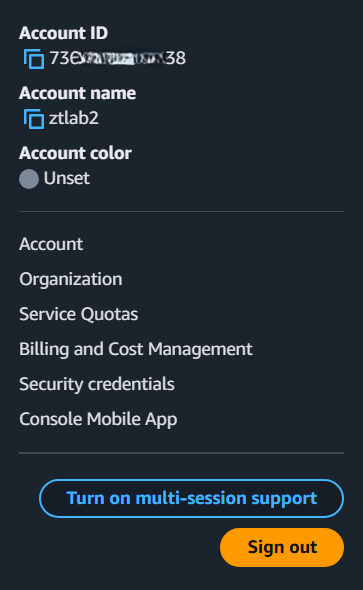
- Click your account name in the top-right corner of the console.
- Copy your account number to your clipboard. In just a moment you will paste it into a CSV file alongside your access key.
- Click on Security credentials.
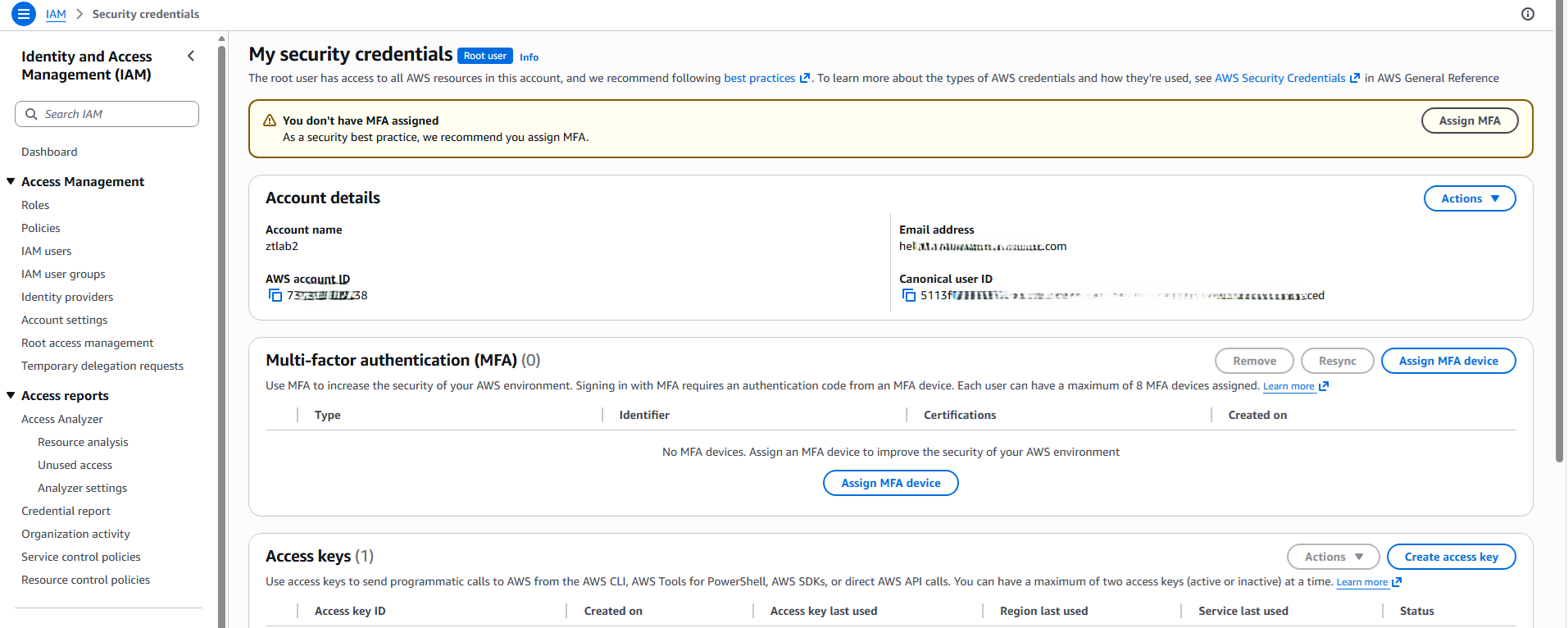
- Scroll to the Access keys section and click
Create access key.
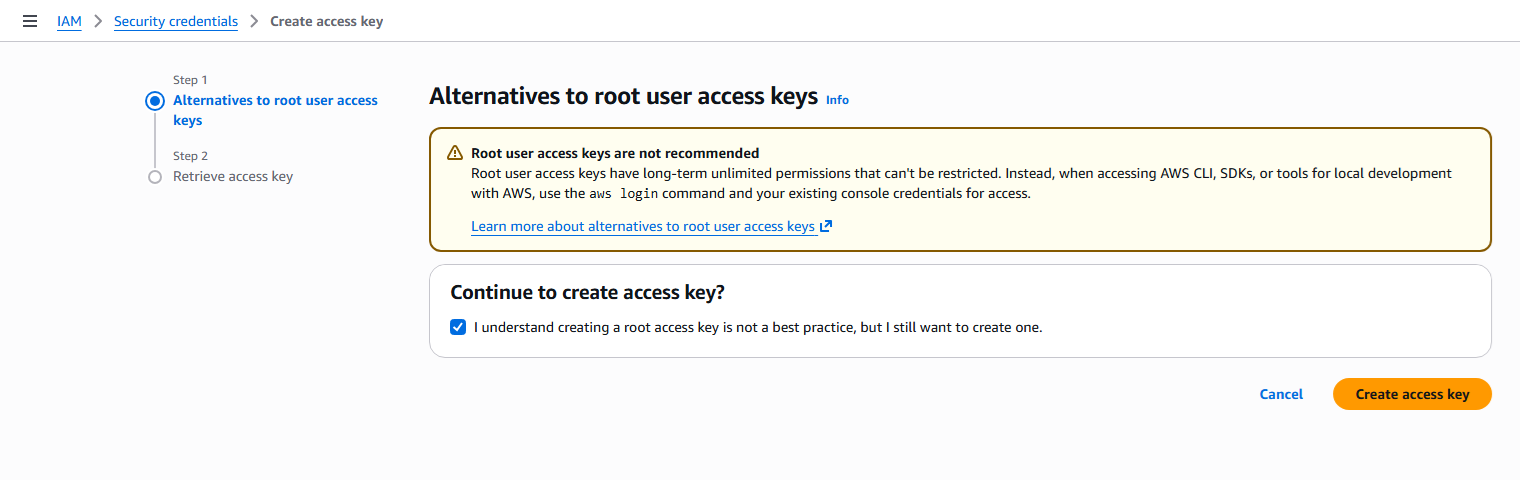
- AWS opens a two-step wizard. The first step is called
"Alternatives to root user access keys" and tries to talk
you out of creating one.
- For a 4-day lab environment this should be fine, so just check the "I understand" confirmation box and click Create access key.
- If you would rather go through the process of creating an IAM user to limit credentials, feel free to do that at this time, but there is no walkthrough in this guide for that process.
- The second step is called "Retrieve access key".
Click the "Download .CSV file" button in the bottom-right corner.
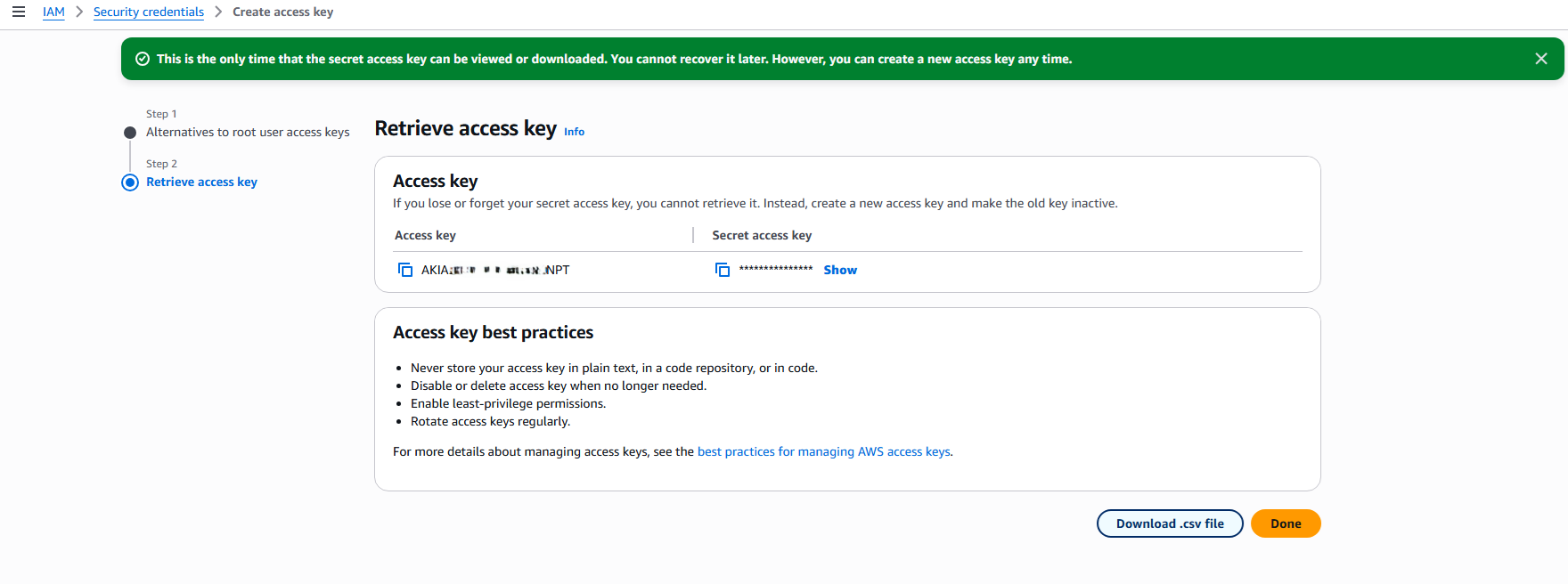
After it downloads, open the file in a text editor. It will look something like the image below:
- The first value (before the comma) is the Access key ID; the value after the comma is the Secret access key. You'll need both of these values in a few moments.
- Click Done.
- Paste the account number from your clipboard into this text file for use in just a moment.
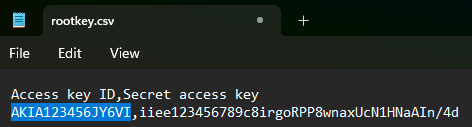
The secret access key cannot be retrieved a second time. If you lose it, delete this key in IAM and create a new one.
The rest of this page is available in two versions. Pick the one that matches how you like to work.
4. Run the installer
Pick your operating system in the tab strip below.
Tested on Windows 11 and Windows Server 2022 with PowerShell 5.1+.
- Open PowerShell as Administrator.
- Run the installer:
irm https://psbc-lab-deploy.cloudflareacademy.com/win | iex - When asked "Have you already deployed this lab to AWS before?", type N (you're deploying for the first time).
- Type yes at the disclosure.
- If you already have a Python 3 version other than 3.13.x installed, the installer warns you and asks Install pinned 3.13 / Continue with existing.
- I is the preferred choice.
- Answer the prompts:
- Account ID
- AWS Access Key ID
- Secret Access Key
- Region (default us-east-1).
- Press Enter to accept it unless you want to change the region.
- Instance types
- Just hit Enter to accept the defaults.
- Wait ~10-20 minutes for preflight + deploy + smoke test.
Troubleshooting Deployment
| What you see | Fix |
|---|---|
irm : The term 'irm' is not recognized | You're in Command Prompt, not PowerShell. Open PowerShell as Administrator instead. |
The term 'winget' is not recognized | winget isn't installed. Run this in your elevated PowerShell to install it, then re-run the installer:
if (Get-Command winget -ErrorAction SilentlyContinue) { Write-Host 'winget is already installed. No action needed.' -ForegroundColor Green } else { [Net.ServicePointManager]::SecurityProtocol = [Net.SecurityProtocolType]::Tls12; $tmp = "$env:TEMP\winget-setup"; New-Item -ItemType Directory -Force -Path $tmp | Out-Null; Invoke-WebRequest -Uri https://aka.ms/Microsoft.VCLibs.x64.14.00.Desktop.appx -OutFile "$tmp\VCLibs.appx"; Invoke-WebRequest -Uri https://aka.ms/getwinget -OutFile "$tmp\winget.msixbundle"; Add-AppxPackage -Path "$tmp\VCLibs.appx"; Add-AppxPackage -Path "$tmp\winget.msixbundle"; Write-Host 'winget installed. Close and reopen PowerShell, then re-run the installer.' -ForegroundColor Green }
|
python not recognized after install | Close PowerShell, open a new elevated window, re-run from step 2. |
The SSL connection could not be established | Old PowerShell defaulting to weak encryption. Paste this in the same window, press Enter, then re-run the installer:
[Net.ServicePointManager]::SecurityProtocol = [Net.SecurityProtocolType]::Tls12
|
| Accidentally closed PowerShell mid-install | Reopen elevated PowerShell, redo steps 1-2. Already-installed tools are skipped. |
Tested on macOS 13+ (Ventura and later) on both Apple Silicon (M1/M2/M3/M4) and Intel.
- Open Terminal.
- If you don't have Homebrew, install it first, then close and reopen Terminal before continuing:
/bin/bash -c "$(curl -fsSL https://raw.githubusercontent.com/Homebrew/install/HEAD/install.sh)" - Run the installer:
curl -fsSL https://psbc-lab-deploy.cloudflareacademy.com/mac | bash - When asked "Have you already deployed this lab to AWS before?", type N (you're deploying for the first time).
- Type yes at the disclosure.
- If you already have a Python 3 version other than 3.13.x installed, the installer warns you and asks Install pinned 3.13 / Continue with existing.
- I is the preferred choice.
- Answer the prompts:
- Account ID
- AWS Access Key ID
- Secret Access Key
- Region (default us-east-1).
- Press Enter to accept it unless you want to change the region.
- Instance types
- Just hit Enter to accept the defaults.
- Wait ~10-20 minutes for preflight + deploy + smoke test.
Troubleshooting Deployment
| What you see | Fix |
|---|---|
command not found: brew immediately after installing Homebrew | Close and reopen Terminal. Homebrew adds itself to PATH only for new shells. Then re-run the install command. |
xcrun: error: invalid active developer path | Paste xcode-select --install, click Install on the pop-up, wait, then re-run. |
| Pop-up asking for your password | Normal. Type your Mac login password (characters hidden) and press Enter. |
| Accidentally closed Terminal mid-install | Reopen Terminal, re-run the install command. Already-installed tools are skipped. |
Ubuntu 22.04 / 24.04 / Debian 12+ tested. Other Linux/glibc distros likely work. The installer fetches a prebuilt CPython 3.13.14 from python-build-standalone, so distro Python version doesn't matter.
- Open a terminal.
- Run the installer (automatically checks for curl and prompts to install if needed):
command -v curl >/dev/null 2>&1 || { echo "curl is required. Install it now? (y/n)"; read -r answer; [[ "$answer" == "y" ]] && sudo apt update && sudo apt install -y curl || exit 1; }; curl -fsSL https://psbc-lab-deploy.cloudflareacademy.com/linux | bash - If prompted about curl, type y and press Enter, then enter your sudo password.
- When asked "Have you already deployed this lab to AWS before?", type N (you're deploying for the first time).
- Type yes at the disclosure.
- If you already have a Python 3 version other than 3.13.x installed, the installer warns you and asks Install pinned 3.13 / Continue with existing.
- I is the preferred choice.
- Answer the prompts:
- Account ID
- AWS Access Key ID
- Secret Access Key
- Region (default us-east-1).
- Press Enter to accept it unless you want to change the region.
- Instance types
- Just hit Enter to accept the defaults.
- Wait ~10-20 minutes for preflight + deploy + smoke test.
Troubleshooting Deployment
| What you see | Fix |
|---|---|
command not found: curl | Paste sudo apt-get update && sudo apt-get install -y curl then re-run. |
apt-get not available on this Linux | Not Debian/Ubuntu. Install Python 3 with your distro's package manager, then re-run. |
user is not in the sudoers file | Ask an admin to add you to the sudo group, then re-run. |
| Accidentally closed the terminal mid-install | Reopen terminal, re-run. Already-installed tools are skipped. |
Your lab environment is deployed. The remaining sections are verification (Post Deployment Testing) and an optional permanent-copy walkthrough.
Here's what just happened
What the script did
- Installed CPython 3.13.14 (the pinned, lab-tested version) via the official python.org installer.
- Installed CPython 3.13.14 (the pinned, lab-tested version) via
brew install python@3.13. - Installed CPython 3.13.14 (the pinned, lab-tested version) from a prebuilt python-build-standalone tarball.
- Downloaded the lab source tarball from this site.
- Installed AWS CLI v2.
- Prompted for AWS Access Key ID, Secret Access Key (masked with asterisks), and region (default us-east-1). Wrote them straight to
~/.aws/credentialsand~/.aws/config. - Ran the AWS preflight check, which hard-blocks if the account isn't empty.
- Installed Terraform (only after preflight passes).
- Ran
terraform apply(4-6 min) to create 3 VPCs and 3 EC2 instances. Everything Terraform creates is tracked in state; nothing is provisioned outside it. - Smoke-tested both Ubuntu VMs (website on :80, intranet on :8000, and
/statuson each). Ubuntu A should advertise"origin":"primary"and Ubuntu B"origin":"backup". - Printed a post-class reminder: run
python setup.py destroy, then delete your root access key from the IAM Console.
What landed in your AWS account
- 3 VPCs (
10.90.0.0/16Windows,10.91.0.0/16Ubuntu A primary,10.92.0.0/16Ubuntu B backup), with no peering between any of them. - 3 internet gateways, 3 subnets, 3 route tables
- 3 security groups (RDP and SSH locked to your public IP; HTTP 80 / 8000 on both Ubuntus open to the world until Lab 11)
- 1 EC2 key pair (shared by both Ubuntus, used by
setup.pyfor emergency SSH access if password authentication fails) - 3 EC2 instances:
lab-windows: your Windows desktop (Windows Server 2022 at10.90.0.90).lab-ubuntu-a: the primary Ubuntu origin server (Ubuntu 24.04 at10.91.0.91).lab-ubuntu-b: the backup Ubuntu origin (Ubuntu 24.04 at10.92.0.92). Used as the second Load Balancer pool member in the Application Security class; idle during the Zero Trust class.
New AWS accounts get $100 in AWS Free Tier credits and 6 months of
free access, enough for a multi-day lab. Tear it all down
with python setup.py destroy when class ends. If you don't
convert to a paid plan when the 6 months are up, AWS closes the account.
5. Post Deployment Testing
Plug in your lab values
Type your AWS region first. The Console link further down on this page will auto-fill with it, so you can click into the AWS Console and find your VM IPs without typing anything. Saved in your browser (survives reloads).
Where to find your region: in the terminal window where
you ran the install command, scroll up. Near the end of the output you'll
see a line like aws_region = "us-east-1". Type that value
(without quotes) into the box above.
The fastest way to find your VMs in the AWS Console: click the Copy button on the link below, paste it into your browser's address bar, and press Enter. The link was built from the AWS region you typed in above, so it drops you straight onto the EC2 Instances page in the correct region (no menu clicking). Sign in if AWS prompts you.
https://<region>.console.aws.amazon.com/ec2/home?region=<region>#Instances:
Once the page loads, you'll see three instance rows:
lab-windows: your Windows desktop.lab-ubuntu-a: the primary Ubuntu origin server.lab-ubuntu-b: the backup Ubuntu origin. Used as the second Load Balancer pool member in the Application Security class; idle during the Zero Trust class.
The Public IPv4 address column on each row is the value you'll paste below.
Don't want to use the link? Sign in to console.aws.amazon.com manually, use the region selector in the top-right to pick your region, then click EC2 → Instances.
Paste each VM's Public IPv4 address from the AWS Console below.
These need to work before day 1 of the class.
- Once you have all three public IPs, run these nine checks.
- If any fails, see the Troubleshooting box below.
SSH and RDP tests
1. SSH into Ubuntu A (primary origin)
From a PowerShell window on your laptop:
From Terminal on your laptop:
From any terminal on your laptop:
ssh cloudflare@<ubuntu-ip>
At the password prompt enter #Savetheinternet. You should land at a cloudflare@origin-primary:~$ shell prompt. Type exit to disconnect.
2. SSH into Ubuntu B (backup origin)
From a PowerShell window on your laptop:
From Terminal on your laptop:
From any terminal on your laptop:
ssh cloudflare@<ubuntu-b-ip>
Same password #Savetheinternet as Ubuntu A. You should land at a cloudflare@origin-backup:~$ shell prompt. Type exit to disconnect.
3. RDP into the Windows desktop
Using the built-in Remote Desktop client:
Install Microsoft Remote Desktop from the Mac App Store (free), then connect to the Windows public IP:
Install remmina (sudo apt-get install remmina remmina-plugin-rdp), then connect to the Windows public IP:
mstsc /v:<windows-ip>
<windows-ip>
<windows-ip>
Enter cloudflare / #Savetheinternet at the credentials prompt. You should see the Windows desktop logged in as the lab user.
HTTP tests
4. AcmeCorp website on Ubuntu A (port 80)
Open in your browser:
http://<ubuntu-ip>
Renders the AcmeCorp homepage.
5. AcmeCorp intranet on Ubuntu A (port 8000)
Same VM, different vhost:
http://<ubuntu-ip>:8000
Renders a visibly different intranet page.
6. Ubuntu A /status identifies as primary
Open in your browser, or run from any terminal:
http://<ubuntu-ip>/status
Returns {"status":"healthy","origin":"primary"}.
7. AcmeCorp website on Ubuntu B (port 80)
Open in your browser:
http://<ubuntu-b-ip>
Renders the same AcmeCorp homepage as Ubuntu A: identical content, served from Ubuntu B's nginx.
8. AcmeCorp intranet on Ubuntu B (port 8000)
Same VM, different vhost:
http://<ubuntu-b-ip>:8000
Renders the same intranet page as Ubuntu A.
9. Ubuntu B /status identifies as backup
Open in your browser, or run from any terminal:
http://<ubuntu-b-ip>/status
Returns {"status":"healthy","origin":"backup"}. This "origin" field is what makes the two pool members tell themselves apart at the curl level in the Application Security Lab 5 Load Balancer exercise.
Troubleshooting Tests
Click to expand
| What you see | Why | Fix |
|---|---|---|
| HTTP test: page doesn't load or times out | The Ubuntu VM is still running cloud-init (nginx not started yet), OR your public IP has changed since deploy | Wait 2-3 more minutes after the installer finished. If still failing, run:
python setup.py update-ip
|
ssh: connect to host <ip> port 22: Connection timed out |
Security group doesn't allow your current public IP, OR you're trying to SSH from the Windows VM (different source IP) | SSH from your laptop, not from the Windows VM. From your laptop, run this, then retry SSH:
python setup.py update-ip
|
Connection refused on SSH |
sshd hadn't finished restarting after cloud-init wrote the password-auth config | Wait 30 sec and retry. If still failing, see the break-glass section below. |
Permission denied or password rejected |
The cloudflare user wasn't created yet, OR sshd didn't pick up the password-auth config |
Break-glass via the ubuntu user (below), then run:
sudo systemctl restart ssh
|
PowerShell says 'ssh' is not recognized |
Older Windows without OpenSSH client | From elevated PowerShell, run this, then retry:
Add-WindowsCapability -Online -Name OpenSSH.Client~~~~0.0.1.0
|
| RDP: "Your credentials did not work" | You typed the password wrong, or domain prefix snuck in | Leave the username as just cloudflare (no .\, no domain). Password is #Savetheinternet case-sensitive. |
Break-glass: SSH as the ubuntu user via your SSH key. The cloudflare user uses password auth; the ubuntu user has its own key-based path that works even if the password-auth setup is broken. The key is ~/.ssh/id_ed25519, either your existing key (if you already had one) or a fresh one that setup.py generated during install and registered with AWS. The same key authorizes both Ubuntus.
Ubuntu A (primary):
ssh -i $env:USERPROFILE\.ssh\id_ed25519 ubuntu@<ubuntu-ip>
ssh -i ~/.ssh/id_ed25519 ubuntu@<ubuntu-ip>
ssh -i ~/.ssh/id_ed25519 ubuntu@<ubuntu-ip>
Ubuntu B (backup):
ssh -i $env:USERPROFILE\.ssh\id_ed25519 ubuntu@<ubuntu-b-ip>
ssh -i ~/.ssh/id_ed25519 ubuntu@<ubuntu-b-ip>
ssh -i ~/.ssh/id_ed25519 ubuntu@<ubuntu-b-ip>
Once in (either VM), run this to confirm cloud-init finished:
sudo cloud-init status
Then, if password auth still isn't working, restart sshd:
sudo systemctl restart ssh
Optional Commands
Easiest path: just re-run the same one-liner you installed with. It asks "Have you already deployed this lab to AWS before?"; answer y and it auto-detects your AWS account (no account-ID prompt), pulls your lab state down from S3, and drops you into a short menu ([1] Update my IP, [2] Destroy lab). This works from any computer with the same AWS key, even one that never ran the deploy. You never type a file path.
The commands below are the power-user equivalents of those menu choices. Each
uses the full path to setup.py, so it
works in any shell window in any current directory.
No need to cd into the lab folder first.
Paste into PowerShell.
Paste into Terminal.
Paste into any shell.
Reprint the VM IPs, SSH / RDP commands, and every Terraform output:
python "$env:USERPROFILE\cloudflare-psbc-lab\setup.py" show
python3 ~/cloudflare-psbc-lab/setup.py show
python3 ~/cloudflare-psbc-lab/setup.py show
Refresh security groups when your public IP changes:
python "$env:USERPROFILE\cloudflare-psbc-lab\setup.py" update-ip
python3 ~/cloudflare-psbc-lab/setup.py update-ip
python3 ~/cloudflare-psbc-lab/setup.py update-ip
Tear down everything (run this when class ends):
python "$env:USERPROFILE\cloudflare-psbc-lab\setup.py" destroy
python3 ~/cloudflare-psbc-lab/setup.py destroy
python3 ~/cloudflare-psbc-lab/setup.py destroy
6. Walking away with a permanent copy (optional)
cd ~/cloudflare-psbc-lab
git init && git add . && git commit -m "My CF PS Bootcamp lab"
git remote add origin <your-git-host-URL>
git push -u origin main
Any git host works: GitHub, GitLab, Gitee, BitBucket, AWS CodeCommit, self-hosted Gitea.
Set aside about 20 minutes of uninterrupted time. The installer downloads software, asks you a few questions, then builds the lab in AWS. You can't leave it unattended. It pauses for your input at several steps.
4. Run the installer
Pick your operating system in the tab strip below. The walkthrough in each tab explains every click and keystroke.
Step 1: Open PowerShell as Administrator
- Click the Start button, the Windows logo at the bottom-left corner of your screen.
- Type the word:
PowerShell - In the search results you'll see Windows PowerShell
(a blue icon with a
>_prompt). Right-click on it. Don't left-click. - From the menu that appears, click Run as administrator.
- Windows shows a pop-up asking "Do you want to allow this app to make changes to your device?" Click Yes.
- A dark blue window opens. The title bar at the top should say Administrator: Windows PowerShell. The word "Administrator" must be there. If you don't see it, close the window and start over from step 1.
You are now in PowerShell as Administrator. It's a blue window with white text and a blinking cursor. You type commands here and press Enter to run them.
Step 2: Run the installer
- Click the Copy button at the right of the box below.
- Click in the PowerShell window.
- Right-click to paste (or Ctrl+V).
- Press Enter.
irm https://psbc-lab-deploy.cloudflareacademy.com/win | iex
The installer first asks "Have you already deployed this lab to AWS before? [y/N]". Type N and press Enter: you are deploying a new lab. (Answer y only when connecting a second computer to a lab you already built. That path auto-detects your AWS account and skips straight to the management menu, covered under Optional Commands below.)
The installer then fills the window with a wall of text explaining what it's about to do. Read it. At the bottom you'll see this question:
Do you understand and agree to the above requirements?
Type the three letters yes and press Enter. If you type anything else (or just press Enter alone), the installer stops without doing anything.
Step 3: Wait, and answer the prompts
After you type yes the installer takes 10-20 minutes. It will:
- Install CPython 3.13.14 from python.org (you may see a Windows pop-up asking permission; click Yes). If you already have a Python 3 version other than 3.13.x, the installer prints an ALL-CAPS warning and asks Install pinned 3.13 alongside / Continue with existing. I is the preferred choice. The lab is tested only with 3.13.x.
- Download the lab files from this website.
- Install the AWS command-line tool (another pop-up; click Yes).
- Ask you to confirm the target AWS account ID (paste the 12-digit number from the top-right of the AWS Console).
- Prompt for credentials:
- AWS Access Key ID: paste from your
rootkey.csvfile or password manager. Echoes as you type. - AWS Secret Access Key: same source.
Echoes as
*per character so it doesn't show on screen. - AWS Region: press Enter to accept the
default us-east-1, or type a different region
code (e.g.
us-west-2,eu-west-1).
- AWS Access Key ID: paste from your
- Auto-detect your laptop's public IP (no confirmation prompt; the security groups will allow RDP/SSH from this IP only).
- Run the AWS safety check (preflight). If your AWS account isn't empty, the installer stops here and tells you exactly what it found. Use a fresh account and start over.
- Install Terraform (another pop-up; click Yes).
- Ask for SSH key location and EC2 instance type defaults. Press Enter at each prompt to accept the default if you're not sure.
- Build your lab in AWS (4-6 minutes).
- Smoke-tests both Ubuntu VMs: the AcmeCorp website (port 80), intranet (port 8000), and the
/statusJSON on each (Ubuntu A advertises"origin":"primary", Ubuntu B"origin":"backup").
Important: Do NOT close the PowerShell window while
the installer is running. If the screen looks frozen, scroll to the
bottom. The installer is probably waiting for you to answer a
question. Look for a line ending in : or
[y/N] and type your answer there.
Troubleshooting Deployment
| What you see | What to do |
|---|---|
irm : The term 'irm' is not recognized |
You opened the wrong program. You're in Command Prompt, not PowerShell. Close that window and start over from step 1 above. |
The term 'winget' is not recognized |
winget isn't installed on this machine. Run this in your
elevated PowerShell window to install it, then re-run the
installer (it skips steps already done):
if (Get-Command winget -ErrorAction SilentlyContinue) { Write-Host 'winget is already installed. No action needed.' -ForegroundColor Green } else { [Net.ServicePointManager]::SecurityProtocol = [Net.SecurityProtocolType]::Tls12; $tmp = "$env:TEMP\winget-setup"; New-Item -ItemType Directory -Force -Path $tmp | Out-Null; Invoke-WebRequest -Uri https://aka.ms/Microsoft.VCLibs.x64.14.00.Desktop.appx -OutFile "$tmp\VCLibs.appx"; Invoke-WebRequest -Uri https://aka.ms/getwinget -OutFile "$tmp\winget.msixbundle"; Add-AppxPackage -Path "$tmp\VCLibs.appx"; Add-AppxPackage -Path "$tmp\winget.msixbundle"; Write-Host 'winget installed. Close and reopen PowerShell, then re-run the installer.' -ForegroundColor Green }
|
| A blue/yellow Windows pop-up asks "Do you want to allow this app..." | Normal. Click Yes. This happens every time the installer installs new software. |
python : The term 'python' is not recognized right after Python installed |
Windows hasn't refreshed its list of programs in this session. Close PowerShell, open a NEW elevated PowerShell (step 1 again), and re-run the installer. It will skip steps that are already done. |
The SSL connection could not be established |
Old PowerShell defaulting to weak encryption. Paste this in the same window, press Enter, then re-run the installer:
[Net.ServicePointManager]::SecurityProtocol = [Net.SecurityProtocolType]::Tls12
|
| A blue full-screen "Windows protected your PC" message | SmartScreen doesn't recognize the installer URL yet. Click More info, then Run anyway. |
| You accidentally closed PowerShell mid-install | No harm done. Open a new elevated PowerShell (step 1 again), and run the install command again. The installer detects what's already installed and skips those steps. |
Step 1: Open the Terminal app
- Press Cmd+Spacebar at the same time. A small search bar appears in the middle of your screen.
- Type the word:
Terminal - Press Enter.
- A small window opens with a white or black background. There's a
line of text ending in something like
username@MacBook ~ %with a blinking cursor.
That's the Terminal. You type commands here and press Enter to run them.
Step 2: Check whether Homebrew is installed
Homebrew is the macOS package manager. The installer uses it to install Python, the AWS tool, and Terraform. Check whether you have it:
- Click the Copy button at the right of the box below.
- Click in the Terminal window.
- Press Cmd+V to paste, then press Enter.
brew --version
If you see something like Homebrew 4.x.x, you have it. Skip
to step 4.
If you see zsh: command not found: brew, you don't have
it. Continue to step 3.
Step 3: Install Homebrew (only if step 2 said it was missing)
- Click the Copy button next to the long command below.
- Paste it into Terminal (Cmd+V) and press Enter.
- It will ask for your Mac login password. Type it (you won't see the characters as you type. That's normal) and press Enter.
- If your Mac asks to install the Command Line Developer Tools, click Install on the pop-up and wait for it to finish (5-10 minutes).
- When Homebrew finishes, it prints two extra commands at the bottom
starting with
echo >> ~/.zprofileandeval "$(/opt/homebrew/bin/brew shellenv)". Copy and paste those two lines too to add Homebrew to your path. - Close Terminal and open a new Terminal window.
Re-run
brew --versionto confirm it works now.
/bin/bash -c "$(curl -fsSL https://raw.githubusercontent.com/Homebrew/install/HEAD/install.sh)"
Step 4: Run the installer
- Click the Copy button next to the command below.
- Click in the Terminal window.
- Cmd+V to paste, then press Enter.
curl -fsSL https://psbc-lab-deploy.cloudflareacademy.com/mac | bash
The installer first asks "Have you already deployed this lab to AWS before? [y/N]". Type N and press Enter: you are deploying a new lab. (Answer y only when connecting a second computer to a lab you already built. That path auto-detects your AWS account and skips straight to the management menu, covered under Optional Commands below.)
The installer then shows a disclosure. Read it. At the bottom you'll see:
Do you understand and agree to the above requirements?
Type yes and press Enter.
Step 5: Wait, and answer the prompts
The installer runs for 10-20 minutes. The order:
- Installs CPython 3.13 via
brew install python@3.13(if missing). If you have a Python 3 version other than 3.13.x already, the installer prints an ALL-CAPS warning and asks Install pinned 3.13 alongside / Continue with existing. I is the preferred choice. The lab is tested only with 3.13.x. - Downloads the lab source tarball and extracts it to
~/cloudflare-psbc-lab - Installs AWS CLI v2 via brew (if missing)
- Asks you to confirm the target AWS account ID (paste the 12-digit number from the top-right of the AWS Console).
- Prompts for credentials:
- AWS Access Key ID: paste from your
rootkey.csvfile or password manager. Echoes as you type. - AWS Secret Access Key: same source.
Echoes as
*per character so it doesn't show on screen. - AWS Region: press Enter to accept the
default us-east-1, or type a different region
code (e.g.
us-west-2,eu-west-1).
- AWS Access Key ID: paste from your
- Auto-detects your laptop's public IP (no confirmation prompt; the security groups will allow RDP/SSH from this IP only).
- Asks for SSH key location and EC2 instance type defaults. Press Enter at each to accept.
- Runs the AWS preflight safety check (2-4 minutes on a brand-new AWS account)
- Installs Terraform from a static zip on
releases.hashicorp.com(only after preflight passes; sudo install to/usr/local/bin/terraform) - Runs
terraform apply, which creates the VPCs and EC2 instances (4-6 minutes) - Smoke-tests both Ubuntu VMs: the AcmeCorp website (port 80), intranet (port 8000), and the
/statusJSON on each (Ubuntu A advertises"origin":"primary", Ubuntu B"origin":"backup")
macOS may ask for your login password during some installs. That's expected. Type your password (you won't see the characters) and press Enter.
Important: Do NOT close the Terminal window while the installer is running. If the screen looks frozen, scroll to the bottom. The installer is probably waiting for you to answer a question.
Troubleshooting Deployment
| What you see | What to do |
|---|---|
command not found: brew |
You skipped step 3 or didn't open a new Terminal after
installing brew. Close Terminal, open a fresh Terminal
window, and check again with brew --version. |
xcrun: error: invalid active developer path |
Command Line Tools missing. Paste:xcode-select --installpress Enter, click Install on the pop-up, wait for it to finish, then re-run the installer. |
| A pop-up asking for your password during brew install | Normal. Type your Mac login password (you won't see the characters) and press Enter. |
| You accidentally closed Terminal mid-install | No harm done. Open Terminal again and re-run the install command. The installer detects what's already installed and skips those steps. |
Step 1: Open a terminal
On most Linux distributions you can press Ctrl+Alt+T to open a terminal, or find Terminal (sometimes called Console) in your applications menu.
A window opens with a prompt ending in $ or
# and a blinking cursor. You type commands here and
press Enter to run them.
Tested on Ubuntu 22.04 and 24.04. Other Debian-based distros (Debian, Mint, Pop!_OS) likely work. RHEL / Fedora / Arch are not auto-supported. The script tells you the install commands but you'd run them yourself.
Step 2: Check that you can use sudo
The installer needs to install software with sudo. Your
user must be in the sudo group. Test:
- Click the Copy button below.
- Paste into terminal (Ctrl+Shift+V) and press Enter.
- Enter your login password if prompted (you won't see characters as you type).
sudo -v
If you see no errors, you're good. If you see user is not in the
sudoers file, ask your administrator to add you, or use a
different account.
Step 3: Run the installer
The installer command below automatically checks if curl is
installed. If it's missing, you'll be prompted to install it. Most systems
have curl pre-installed.
- Click the Copy button below.
- Paste in the terminal (Ctrl+Shift+V).
- Press Enter.
command -v curl >/dev/null 2>&1 || { echo "curl is required. Install it now? (y/n)"; read -r answer; [[ "$answer" == "y" ]] && sudo apt update && sudo apt install -y curl || exit 1; }; curl -fsSL https://psbc-lab-deploy.cloudflareacademy.com/linux | bash
If you see curl is required. Install it now? (y/n), type
y and press Enter. You'll be prompted for your
sudo password. Type it (you won't see characters as you type) and
press Enter. Curl will install, then the lab installer
will start automatically.
The installer first asks "Have you already deployed this lab to AWS before? [y/N]". Type N and press Enter: you are deploying a new lab. (Answer y only when connecting a second computer to a lab you already built. That path auto-detects your AWS account and skips straight to the management menu, covered under Optional Commands below.)
A disclosure appears. Read it. At the bottom:
Do you understand and agree to the above requirements?
Type yes and press Enter.
Step 4: Wait, and answer the prompts
The installer runs for 10-20 minutes. The order:
- Installs CPython 3.13.14 from a pinned
python-build-standalone
tarball into
/usr/local/python-3.13.14/, with symlinks in/usr/local/bin/sopythonandpython3both resolve to the pinned interpreter (sudo prompts during install). If you have a Python 3 version other than 3.13.x already, the installer prints an ALL-CAPS warning and asks Install pinned 3.13 alongside / Continue with existing. I is the preferred choice. The lab is tested only with 3.13.x. - Downloads the lab source tarball and extracts it to
~/cloudflare-psbc-lab - Installs AWS CLI v2 via AWS' official bundled installer
(downloads
awscli-exe-linux-x86_64.zipfromawscli.amazonaws.com, sudo to install to/usr/local) - Asks you to confirm the target AWS account ID (paste the 12-digit number from the top-right of the AWS Console).
- Prompts for credentials:
- AWS Access Key ID: paste from your
rootkey.csvfile or password manager. Echoes as you type. - AWS Secret Access Key: same source.
Echoes as
*per character so it doesn't show on screen. - AWS Region: press Enter to accept the
default us-east-1, or type a different region
code (e.g.
us-west-2,eu-west-1).
- AWS Access Key ID: paste from your
- Auto-detects your laptop's public IP (no confirmation prompt; the security groups will allow RDP/SSH from this IP only).
- Asks for SSH key location and EC2 instance type defaults. Press Enter at each to accept.
- Runs the AWS preflight safety check (2-4 minutes on a brand-new AWS account)
- Installs Terraform via HashiCorp's static binary download
(releases.hashicorp.com), sudo to install
/usr/local/bin/terraform, only after preflight passes - Runs
terraform apply, which creates the VPCs and EC2 instances (4-6 minutes) - Smoke-tests both Ubuntu VMs: the AcmeCorp website (port 80), intranet (port 8000), and the
/statusJSON on each (Ubuntu A advertises"origin":"primary", Ubuntu B"origin":"backup")
Important: Don't close the terminal while the installer is running.
Troubleshooting Deployment
| What you see | What to do |
|---|---|
command not found: curl |
Paste:sudo apt-get update && sudo apt-get install -y curlthen re-run the install command. |
apt-get not available on this Linux |
You're not on Debian / Ubuntu. Install Python 3 manually with
your distro's package manager (dnf install,
pacman -S) and re-run the install command. |
user is not in the sudoers file |
Your account can't install software. Get an admin to add
you to the sudo group, then re-run. |
Your lab environment is deployed. The remaining sections are verification (Post Deployment Testing) and an optional permanent-copy walkthrough.
Here's what just happened
What the script did
The script is interactive. The very first thing it shows you is a full disclosure of what's about to happen. You type yes to continue or anything else to cancel. Then:
| Step | What happens |
|---|---|
| Python install |
If you don't have CPython 3.13.x, it's installed via the official python.org installer. If you don't have CPython 3.13.x, it's installed via If you don't have CPython 3.13.x, it's installed from a prebuilt python-build-standalone tarball into |
| Download the lab source | The bootstrap downloads a small tarball of the lab code from this
site and extracts it to ~/cloudflare-psbc-lab. |
| AWS CLI install + configure |
If missing, AWS CLI v2 is installed from the MSI at If missing, AWS CLI v2 is installed via If missing, AWS CLI v2 is installed via AWS' official bundled installer (zip from * per character) plus an AWS region
(default us-east-1). Writes these straight to
~/.aws/credentials and ~/.aws/config
via aws configure set. No "output format" prompt. It's silently set to json, which Terraform
doesn't use anyway.
Terraform uses this credential for the full lifecycle (deploy AND destroy). We deliberately don't create an intermediate IAM user, because any AWS resource created outside Terraform state cannot be cleaned up by terraform destroy.
|
| Collect lab inputs | Auto-detects your public IP (used to lock down RDP/SSH in the
security groups. No confirmation prompt; the lab tells you
ahead of time that this will happen). Prompts for SSH key
location and EC2 instance types (press Enter for defaults).
The lab name prefix (cloudflare-lab) and region
(already set in aws configure) are not asked
about again. Happens before preflight so the safety
check can target the right region. |
| AWS account preflight | The safety check. Scans your AWS account for any non-default resources, AWS Organizations membership, connected networks, production-style alias, CIDR conflicts. If anything is found, deploy is blocked. |
| Terraform install |
Only after preflight passes: Terraform is installed from a static zip on Only after preflight passes: Terraform is installed from a static zip on Only after preflight passes: Terraform is installed from a static zip on |
| Deploy | terraform apply creates the VPCs, instances, and
security groups. Takes 4-6 minutes. |
| Smoke test | The script curls each Ubuntu public IP to confirm the AcmeCorp
website (port 80), intranet (port 8000), and /status
endpoint all respond. Ubuntu A should advertise
"origin":"primary"; Ubuntu B
"origin":"backup". |
What landed in your AWS account
| Resource | Quantity | Notes |
|---|---|---|
| VPCs | 3 | 10.90.0.0/16 (Windows), 10.91.0.0/16 (Ubuntu A, primary origin), 10.92.0.0/16 (Ubuntu B, backup origin). No peering between any pair. |
| Internet gateways | 3 | One per VPC. |
| Subnets, route tables | 3 each | 10.90.0.0/24, 10.91.0.0/24, 10.92.0.0/24. |
| Security groups | 3 | RDP and SSH locked to your public IP. HTTP 80 / 8000 on both Ubuntus open to the world so the AcmeCorp site is reachable from anywhere until Lab 11. |
| EC2 key pair | 1 | Shared by both Ubuntus. Used by setup.py for emergency SSH access if password authentication fails. See the troubleshooting section for usage. |
| EC2 instances | 3 |
|
Cost: new AWS accounts get $100 in AWS Free Tier
credits and 6 months of free access, enough for a multi-day
lab. Tear it all down with python setup.py destroy when class
is over. If you don't convert to a paid plan when the 6 months are up, AWS
closes the account, so there's no risk of forgotten lab resources
accumulating charges.
5. Post Deployment Testing
Plug in your lab values
Type your AWS region first. The Console link further down on this page will auto-fill with it, so you can click into the AWS Console and find your VM IPs without typing anything. Saved in your browser (survives reloads).
Where to find your region: in the terminal window where
you ran the install command, scroll up. Near the end of the output you'll
see a line like aws_region = "us-east-1". Type that value
(without quotes) into the box above.
The fastest way to find your VMs in the AWS Console: click the Copy button on the link below, paste it into your browser's address bar, and press Enter. The link was built from the AWS region you typed in above, so it drops you straight onto the EC2 Instances page in the correct region (no menu clicking). Sign in if AWS prompts you.
https://<region>.console.aws.amazon.com/ec2/home?region=<region>#Instances:
Once the page loads, you'll see three instance rows:
lab-windows: your Windows desktop.lab-ubuntu-a: the primary Ubuntu origin server.lab-ubuntu-b: the backup Ubuntu origin. Used as the second Load Balancer pool member in the Application Security class; idle during the Zero Trust class.
The Public IPv4 address column on each row is the value you'll paste below.
Don't want to use the link? Sign in to console.aws.amazon.com manually, use the region selector in the top-right to pick your region, then click EC2 → Instances. The "Finding your VMs in the AWS Console" subsection further down has a click-by-click walkthrough if you've never used the Console before.
Paste each VM's Public IPv4 address from the AWS Console below.
Finding your VMs in the AWS Console
If you've never used the AWS Console before, the EC2 page is where every virtual machine in your account is listed. To get there:
- Sign in to console.aws.amazon.com as your root user.
- In the top-right corner, click the region selector
and pick the region you deployed to (the same one you typed at the
AWS Regionprompt during install, default us-east-1). - In the search bar at the top, type
EC2and click the result, or click the Services menu → Compute → EC2. - In the left sidebar, click Instances.
You'll see three rows, one per VM. The columns you care about:
| Column | What it tells you |
|---|---|
| Name |
|
| Instance state | Should be Running (green dot) on all three. |
| Public IPv4 address | This is the IP you RDP / SSH / browse to. Copy with the icon next to the address. |
| Private IPv4 address | 10.90.0.90 for Windows, 10.91.0.91 for Ubuntu A (primary), 10.92.0.92 for Ubuntu B (backup). Matches the lab guides' placeholder IPs verbatim. |
Smoke-test the lab before Lab 1
With the three public IPs from above, run all nine of these from your
own laptop. The first group confirms remote access to each VM
(SSH to both Ubuntus, RDP to Windows); the second group hits the
three HTTP endpoints on each Ubuntu (website on :80, intranet on :8000,
/status). Both Ubuntus serve identical AcmeCorp content;
the only behavioral difference is what their /status JSON
advertises. If any fails, see the troubleshooting block at the end of
this subsection. Chasing a broken VM during Lab 1 is much harder than
catching it now.
SSH and RDP tests
1. SSH into Ubuntu A (primary origin)
From a regular (non-elevated) PowerShell window on your laptop, using the built-in OpenSSH client. Run:
From Terminal on your laptop. Run:
From any terminal on your laptop. Run:
ssh cloudflare@<ubuntu-ip>
First connection prompts you to accept the host's SSH fingerprint (type yes and press Enter). Then prompts for the password. Type:
#Savetheinternet
The password won't echo as you type. That's normal. After Enter, you
should land at a prompt like cloudflare@origin-primary:~$
(cloud-init renames the host to origin-primary on first
boot). Type whoami (should say cloudflare),
hostname (should say origin-primary),
then exit to disconnect.
2. SSH into Ubuntu B (backup origin)
From a regular (non-elevated) PowerShell window on your laptop. Run:
From Terminal on your laptop. Run:
From any terminal on your laptop. Run:
ssh cloudflare@<ubuntu-b-ip>
Same password (#Savetheinternet) as Ubuntu A.
You should land at cloudflare@origin-backup:~$.
Type exit to disconnect.
3. RDP into the Windows desktop
Open Run (Win+R), type mstsc, Enter, or run from PowerShell:
mstsc /v:<windows-ip>
Install Microsoft Remote Desktop from the Mac App Store (free), open it, click Add PC, paste the Windows public IP below into "PC name", click Add, then double-click the new tile to connect.
<windows-ip>
Install remmina (sudo apt-get install remmina remmina-plugin-rdp), open it, new connection, protocol RDP, server set to:
<windows-ip>
At the credentials prompt, enter:
| Username | cloudflare: no domain prefix, no .\, no email format |
| Password | #Savetheinternet: case-sensitive, starts with a literal # |
Click Yes / Continue at the certificate warning (the Windows VM uses a
self-signed RDP cert, expected). After a few seconds you should see
the Windows desktop. The taskbar shows you signed in as
cloudflare; open Start → Run →
whoami to confirm.
HTTP tests
4. AcmeCorp website on Ubuntu A (port 80)
Open in your browser:
http://<ubuntu-ip>
Should render the AcmeCorp homepage (a landing page with the AcmeCorp brand). The HTML is served by nginx on Ubuntu A, pulled from the launcher Worker by cloud-init during the deploy.
5. AcmeCorp intranet on Ubuntu A (port 8000)
Same Ubuntu A, different vhost:
http://<ubuntu-ip>:8000
Visibly different intranet content. Confirming both ports work proves nginx is healthy and both vhosts are serving.
6. Ubuntu A /status identifies as primary
Open in your browser, or run from any terminal:
http://<ubuntu-ip>/status
Returns {"status":"healthy","origin":"primary"}. The origin field is templated into nginx at boot by cloud-init's origin_role variable.
7. AcmeCorp website on Ubuntu B (port 80)
Open in your browser:
http://<ubuntu-b-ip>
Renders the same AcmeCorp homepage as Ubuntu A: identical content, served from Ubuntu B's nginx after cloud-init pulled the same tarball from the launcher Worker.
8. AcmeCorp intranet on Ubuntu B (port 8000)
Same Ubuntu B, different vhost:
http://<ubuntu-b-ip>:8000
Renders the same intranet page as Ubuntu A.
9. Ubuntu B /status identifies as backup
Open in your browser, or run from any terminal:
http://<ubuntu-b-ip>/status
Returns {"status":"healthy","origin":"backup"}. This origin field is what makes the two pool members tell themselves apart at the curl level in the Application Security Lab 5 Load Balancer exercise.
Troubleshooting Tests
Click to expand
| What you see | Most likely cause | Fix |
|---|---|---|
| HTTP test times out or returns nothing | Ubuntu cloud-init is still running (nginx not yet started), OR your public IP changed since deploy and the SG is blocking you | Wait 2-3 minutes after the installer's "smoke test" line. Then if still failing, run from your laptop:
python setup.py update-ip
|
ssh: connect to host <ip> port 22: Connection timed out |
Security group doesn't allow your current IP. Often happens if you SSH from the Windows VM (its public IP isn't allowlisted), or if your laptop's IP changed. | SSH from your laptop, not from the Windows VM. If your laptop's IP changed, run this from the same laptop you ran the installer from:
python setup.py update-ip
|
ssh: connect to host <ip> port 22: Connection refused |
sshd was restarting when you tried to connect | Wait 30 seconds and retry. If still failing, use the break-glass path below. |
Permission denied (publickey,password) or password rejected for the cloudflare user |
The cloudflare user hadn't been created when sshd loaded, OR PasswordAuthentication yes hasn't taken effect |
Break-glass via the ubuntu user (below), then run:
sudo systemctl restart ssh
|
PowerShell: 'ssh' is not recognized as the name of a cmdlet |
Old Windows version without OpenSSH client | From elevated PowerShell run this, then retry from a new PowerShell window (or RDP into the Windows VM, which has OpenSSH preinstalled, and SSH from there):
Add-WindowsCapability -Online -Name OpenSSH.Client~~~~0.0.1.0
|
| RDP: "Your credentials did not work" | Typo in password, OR your client added a domain prefix to the username | Username is literally cloudflare: no WINDOWS\, no .\cloudflare, no cloudflare@. Password is #Savetheinternet, case-sensitive, starts with #. |
| RDP: client immediately closes / blank screen | Windows VM is still rebooting after cloud-init (renames the computer to win-desktop on first boot) |
Wait 3-5 minutes after the installer finished and retry. |
Break-glass: SSH into either Ubuntu as the ubuntu user (key-based, always works)
The cloudflare user uses password authentication, which can
fail if cloud-init's sshd restart hasn't completed. The
ubuntu user has a separate path: it uses the SSH public
key that setup.py registered with AWS during deploy
(the one in ~/.ssh/id_ed25519.pub on your laptop, or
auto-generated if you didn't have one). The same key authorizes both
Ubuntu A and Ubuntu B.
Ubuntu A (primary), from your laptop:
ssh -i $env:USERPROFILE\.ssh\id_ed25519 ubuntu@<ubuntu-ip>
ssh -i ~/.ssh/id_ed25519 ubuntu@<ubuntu-ip>
ssh -i ~/.ssh/id_ed25519 ubuntu@<ubuntu-ip>
Ubuntu B (backup), same key, different IP:
ssh -i $env:USERPROFILE\.ssh\id_ed25519 ubuntu@<ubuntu-b-ip>
ssh -i ~/.ssh/id_ed25519 ubuntu@<ubuntu-b-ip>
ssh -i ~/.ssh/id_ed25519 ubuntu@<ubuntu-b-ip>
Once you're in (on either Ubuntu), useful diagnostic commands:
Is cloud-init finished?
sudo cloud-init status
What's the latest cloud-init activity?
sudo tail -40 /var/log/cloud-init-output.log
Is sshd running?
sudo systemctl status ssh
Does the lab user exist?
id cloudflare
Is password auth on?
grep -i passwordauth /etc/ssh/sshd_config /etc/ssh/sshd_config.d/*
Last-resort restart of sshd:
sudo systemctl restart ssh
Which origin role is this VM (primary or backup)?
curl -s http://localhost/status
Then exit and retry the password-based SSH from your laptop.
The installer dropped the lab into
$env:USERPROFILE\cloudflare-psbc-lab (i.e. C:\Users\<your-name>\cloudflare-psbc-lab)~/cloudflare-psbc-lab (i.e. /Users/<your-name>/cloudflare-psbc-lab)~/cloudflare-psbc-lab (i.e. /home/<your-name>/cloudflare-psbc-lab).
Every command below uses the full path to
setup.py, so it works in any
PowerShellTerminalshell
window regardless of where you're currently cd'd.
No setup, no shell config, no profile editing. Paste and run.
Optional Commands
Easiest path: re-run the same one-liner you installed with. It asks "Have you already deployed this lab to AWS before?"; answer y and it auto-detects your AWS account (no account-ID prompt), pulls your lab state down from S3, and drops you into a short menu ([1] Update my IP, [2] Destroy lab). This works from any computer that has the same AWS key, even one that never ran the deploy: the lab directory is mirrored to a private, encrypted S3 bucket in your own account after every change. You never type a file path.
The commands below are the power-user equivalents of those menu choices, for when you would rather type the command directly than use the menu.
Reprint the VM IPs, SSH / RDP commands, and every Terraform output
python "$env:USERPROFILE\cloudflare-psbc-lab\setup.py" show
python3 ~/cloudflare-psbc-lab/setup.py show
python3 ~/cloudflare-psbc-lab/setup.py show
Prints the formatted lab summary (Windows public IP, both Ubuntu public + private IPs, RDP / SSH / curl commands, AWS Console URL, destroy command), then dumps every raw Terraform output below it. Read-only; touches nothing in AWS.
Refresh security groups when your public IP changes
python "$env:USERPROFILE\cloudflare-psbc-lab\setup.py" update-ip
python3 ~/cloudflare-psbc-lab/setup.py update-ip
python3 ~/cloudflare-psbc-lab/setup.py update-ip
Your security groups only allow RDP / SSH from the public IP you had
when you ran the installer. When you move networks (office, home,
hotel, conference Wi-Fi) the IP changes and RDP / SSH stop working.
This subcommand auto-detects your new public IP and rewrites the
security groups. Add --ip 203.0.113.5/32 to override
manually if auto-detect fails. Takes about 30 seconds.
Tear down everything (run this when class ends)
python "$env:USERPROFILE\cloudflare-psbc-lab\setup.py" destroy
python3 ~/cloudflare-psbc-lab/setup.py destroy
python3 ~/cloudflare-psbc-lab/setup.py destroy
Calls terraform destroy on every resource the installer
created. Cleans up VPCs, EC2 instances, EBS volumes, security groups,
internet gateways, EIPs, and the key pair. After this runs, the only
thing left in AWS is your root access key, which you delete manually
in the IAM Console.
None of these (commands above) need network access to GitHub or to this site.
Once the install is done, the lab directory and the local Terraform state
file (terraform.tfstate) have everything the lifecycle commands
need. You can tear the lab down from anywhere in the world as long as your
laptop can reach the AWS API.
Cleaning up after destroy: Terraform owns 100% of the
AWS resources the installer creates, so python setup.py destroy
is sufficient to clean up everything in AWS. The only piece
Terraform can't manage is the root access key you created in Section 3
(it's the credential Terraform is authenticating with). After
destroy, sign in to the AWS Console once more and delete that key:
IAM → Users → your root user → Security credentials
→ Access keys → Actions → Delete. That single
manual step is the entire post-class hygiene checklist.
6. Walking away with a permanent copy (optional)
After class ends, if you want a personal git copy of your lab so you can modify it, re-deploy it later, or share it with colleagues, push the directory to whatever git host you use:
cd ~/cloudflare-psbc-lab
git init
git add .
git commit -m "My CF PS Bootcamp lab"
git remote add origin <your-git-host-URL>
git push -u origin main
Any git host works: GitHub, GitLab, Gitee, BitBucket, AWS CodeCommit,
self-hosted Gitea. Pick whatever your network reaches and your employer
allows. The lab source is small (under 100 KB) and the
terraform.tfstate file is what makes future
terraform destroy calls work, so commit them together.